What Does Context Menu Manager Do?
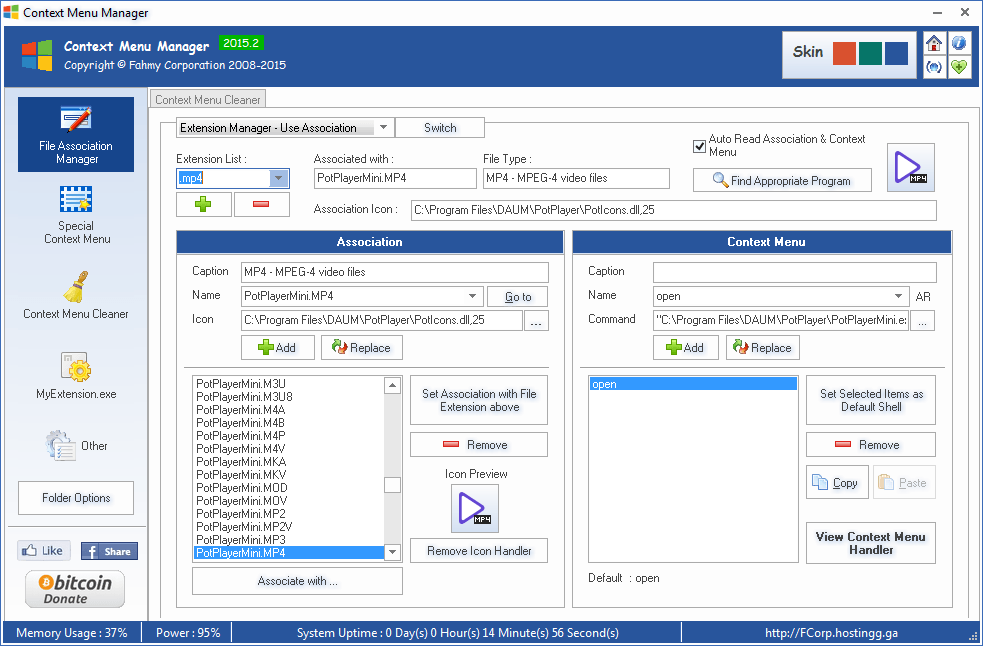
This utility provides centralized control over the Windows shell environment, specifically targeting file association management and context menu customization. It allows users to define which applications are linked to specific file extensions, bypassing the standard operating system defaults to ensure files open in preferred software every time.
The software focuses on streamlining the right-click interface. Users can modify existing context menu entries or remove redundant items that often accumulate after multiple software installations. A core feature, My Open With, enables the creation of custom "Open With" lists, providing a curated selection of applications for different file types rather than relying on the system-generated suggestions.
In addition to organization, the tool integrates several productivity-focused commands directly into the shell. These include:
- Smart Rename: Advanced batch renaming capabilities for multiple files.
- Copy Path: One-click copying of file or folder locations to the clipboard.
- Advanced Properties: Access to extended metadata and file details not found in the standard properties dialog.
- Set Application Path: Manual configuration of environment paths for specific executable files.
By consolidating these system-level interface settings into a single management console, the service allows for a more efficient and personalized workflow within the file explorer.
Top 5 Reasons To Download Context Menu Manager
- Absolute Mastery Over File Associations: Reclaim your PC from software that "steals" file extensions without your permission.
- Declutter and Optimize Your Context Menu: Strip away the useless junk from your right-click menu to find what you actually need in milliseconds.
- Revolutionary "My Open With" Personalization: Create a bespoke secondary menu of applications for any file type, bypassing the clunky Windows default system.
- Integrated Power-User Utilities: Gain instant access to professional-grade tools like Smart Rename, Copy Path, and Advanced Properties right from your cursor.
- Streamlined System Efficiency: Reduce workflow friction and visual noise, turning a bloated operating system into a high-performance productivity machine.
1. Absolute Mastery Over File Associations
We have all been there. You install a new media player or a lightweight image viewer, and suddenly, every single file on your computer has changed its icon. Your favorite professional photo editor is no longer the default for JPEGs, and your curated music library now opens in a bloated, resource-heavy application you only intended to use once. This "file association hijacking" is one of the most persistent frustrations in the Windows ecosystem. While Windows provides a built-in way to change defaults, it is often buried under layers of settings menus, and it frequently fails to show you the full scope of what has been changed under the hood.
This software giveaway provides a surgical solution to this problem. Instead of hunting through the Windows Settings app, you get a centralized command center. You can see exactly which extensions are tied to which executables. The power here is not just in fixing a mistake, but in preventing future headaches. By using this tool to manage file associations, you ensure that your workflow remains consistent. For a creative professional or a developer, having the right tool open the right file is not just a convenience—it is a necessity for maintaining focus.
Moreover, the tool handles the heavy lifting of registry modifications safely. Manually editing file associations in the Windows Registry is a recipe for disaster if you aren't an expert. This app provides a "safety net" interface that allows you to toggle associations with a single click. It treats your file system with the respect it deserves, allowing you to experiment with new software without the fear that your established file ecosystem will be thrown into chaos. It is about taking back the "ownership" of your files from the software developers who think they know better than you do.
2. Declutter and Optimize Your Context Menu
The right-click context menu is arguably the most valuable piece of real estate in the entire Windows user interface. It is the bridge between the user and the action. However, as you install more software—cloud storage, compression tools, antivirus programs, and media converters—this menu starts to look like a digital junk drawer. You find yourself scrolling through a list of twenty options just to find the "Delete" or "Rename" button. This bloat doesn't just look ugly; it slows down your brain and your hands.
By downloading this giveaway, you gain the ability to perform a total "context menu audit." You can see every hidden entry that has snuck its way into your right-click list and, more importantly, you can disable them instantly. Imagine a world where your right-click menu only contains the four or five things you actually use. The speed increase in your daily tasks is palpable. You no longer have to scan a wall of text; your muscle memory takes over because the target is always in the same place and the clutter is gone.
This isn't just about removing items, though. It’s about organization. A cluttered menu is a sign of a cluttered workflow. When you strip away the legacy entries from software you uninstalled three years ago (which Windows often leaves behind), you are essentially tuning your engine. For tech enthusiasts who pride themselves on a "clean" setup, this feature alone makes the software an essential download. It’s the digital equivalent of organizing your physical workbench so that the hammer is always exactly where you reach for it.
3. Revolutionary "My Open With" Personalization
The standard Windows "Open With" menu is, quite frankly, a mess. It often suggests apps that can’t even open the file type in question, or it forces you to click "Choose another app" and browse your Program Files folder every single time you want to use a non-default program. This is a massive time-sink for anyone who works with multiple tools. For instance, a web developer might want to open an HTML file in a browser to view it, in a code editor to change it, or in a text editor for a quick peek. Switching defaults constantly is not an option.
The "My Open With" feature included in this software is a game-changer. It allows you to build your own custom sub-menu. You can explicitly define which applications appear for specific file extensions. Instead of relying on Windows’ "best guess," you are creating a curated list of shortcuts. This level of customization transforms your right-click menu into a powerful application launcher.
Think about the productivity implications. If you are a photographer, you can have a "My Open With" menu for RAW files that includes your primary editor, a batch converter, and a metadata viewer. You don't have to launch the apps first and then navigate to the file; you bring the apps to the file. This feature respects the way you work, rather than forcing you to adapt to the limitations of the OS. It is a sophisticated layer of personalization that once you use, you will wonder how you ever lived without.
4. Integrated Power-User Utilities
Windows is full of "missing features"—small utilities that should have been part of the OS from the beginning but were left out. This software fills those gaps by injecting additional functionality directly into your context menu. One of the standout features is "Copy Path." While modern Windows has finally added a version of this, it is often clunky. Having a dedicated, highly accessible "Copy Path" tool is a godsend for anyone who works with command-line interfaces, scripts, or deep folder structures. No more clicking the address bar and manually typing out the filename.
Then there is "Smart Rename." We’ve all had to rename a dozen files at once, and doing it manually is soul-crushing. While there are dedicated bulk renaming tools out there, having a "Smart Rename" option right in your right-click menu is far more efficient for those quick, middle-of-the-road tasks. It allows for quick adjustments without the need to launch a separate, complex application. It’s about having the right tool at the right time.
Furthermore, the "Advanced Properties" and "Set Application Path" features provide deep-level access that usually requires digging through administrative tools. These "Advanced Context Menu" additions are designed for the user who wants to move fast. They represent a philosophy of efficiency: why take ten clicks to do something when you can do it in two? By downloading this giveaway, you aren't just getting a manager; you are getting a toolbox of shortcuts that will save you minutes every single day, which adds up to hours over a year.
5. Streamlined System Efficiency
Every piece of software on your computer should serve a purpose. Often, we ignore the "overhead" of our digital environment—the small delays, the visual distractions, and the extra clicks. This software is designed to eliminate that overhead. By managing your associations and menus, you are effectively reducing the cognitive load of using your computer. When your interface is predictable and streamlined, you can stay in "the flow" for longer periods.
From a technical standpoint, a leaner context menu can actually improve system responsiveness. Every time you right-click a file, Windows has to poll all those registered shell extensions to build that menu. If you have dozens of poorly written extensions from various software packages, you might notice a "hang" or a delay before the menu appears. By using this tool to disable the "zombie" entries and unnecessary bloat, you are ensuring that your UI remains snappy and responsive. It is a "weight loss" program for your right-click button.
Finally, there is the value of the giveaway itself. High-quality system utilities that offer this level of granular control often come with a subscription or a hefty price tag. Getting a tool that manages file associations, cleans your context menus, and adds power-user shortcuts for free is a no-brainer. It is an investment in your own productivity. This isn't just another app to sit on your hard drive; it is a fundamental upgrade to your Windows experience. If you value your time and your digital workspace, this is an essential addition to your software library.
In conclusion, the combination of file association control, context menu decluttering, the "My Open With" innovation, and the suite of advanced shortcuts makes this software an incredibly compelling package. It addresses the daily "paper cuts" of using Windows and provides a smooth, professional, and highly customized environment. Don't let your operating system dictate how you work; use this giveaway to take command and build the workflow you’ve always wanted. Download it, clean up your menus, and feel the difference in your next project.

Reviews for Context Menu Manager
Click Here to Read Reviews for Context Menu Manager >> Click Here to Submit Reviews for Context Menu Manager >>