What Does Exploring Windows 10 Guide Do?
Windows 10 is an operating system designed to bridge the gap between touch-based interfaces and traditional mouse-and-keyboard setups. By combining interface elements from Windows 7 and Windows 8.1, the platform aims to provide an intuitive experience for a wide range of hardware, from tablets to desktop PCs. The operating system prioritizes efficiency and workflow management through several key features that enhance both usability and productivity.
The Start menu returns as a central hub, allowing users to access apps, files, and system settings via clicks, keystrokes, or taps. Navigation is supported by Cortana, a digital assistant that provides updates and manages daily tasks. For internet browsing, Microsoft Edge replaces legacy tools to offer a modernized web experience. Users can manage complex workflows using Task View and virtual desktops, which allow for the organization of multiple open applications into distinct, manageable workspaces.
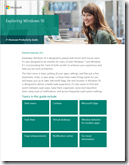
System productivity is further refined by enhanced snap features and updated window behaviors for modern applications, facilitating better multitasking on high-resolution displays. A dedicated Notification center aggregates system alerts and provides rapid access to frequently used settings. This guide covers several essential components, including:
- The functionality of the Start menu
- Task management via Cortana
- Web browsing with Microsoft Edge
- Implementing Task View and virtual desktops
- Snap enhancements and modern app behavior
- Managing the Notification center
Top 5 Reasons To Download Exploring Windows 10 Guide
1. The Ultimate Hybrid Interface: Windows 10 brings back the legendary Start menu, blending the familiar efficiency of Windows 7 with the dynamic, live-information feel of Windows 8.1 for a truly intuitive experience.
2. Your Personal Productivity Assistant: Cortana is deeply integrated into the system, helping you manage your schedule, find files instantly, and stay ahead of your daily tasks with simple voice or text commands.
3. A Reimagined Web Experience: Microsoft Edge replaces the clunkiness of the past with a sleek, high-performance browser designed for speed, better reading, and seamless interaction with modern web standards.
4. Pro-Level Multitasking with Task View: The introduction of Virtual Desktops and Task View allows you to organize your workflow like a professional, keeping your work, gaming, and personal browsing in separate, easily accessible spaces.
5. Streamlined System Management: With the new Notification Center and Snap Enhancements, keeping track of your alerts and organizing multiple open windows has never been more fluid or less distracting.
In the world of technology, we are often forced to choose between the familiar and the revolutionary. For years, users felt torn between the classic reliability of Windows 7 and the bold, touch-first experimentation of Windows 8.1. But what if you didn't have to choose? What if you could have an operating system that respects your muscle memory while propelling you into the future of computing? That is exactly what this Windows 10 guide and software overview promises. As a reviewer who has seen the ups and downs of OS iterations, I can tell you that this is the upgrade your digital life has been waiting for. Here is a deep dive into why you need to download this giveaway and embrace the Windows 10 ecosystem today.
1. The Return and Evolution of the Start Menu
If there was one single feature that defined the frustration of the previous era, it was the disappearance of the Start menu. We all remember the confusion of being thrust into a full-screen tile interface when all we wanted to do was open a simple calculator or find a document. Windows 10 fixes this by bringing back the Start menu in a way that is both nostalgic and incredibly modern. It is the centerpiece of the "best of both worlds" philosophy that makes this download so essential.
The new Start menu is a masterpiece of design. On the left side, you have your familiar list of most-used apps and system settings, mimicking the workflow of Windows 7 that so many of us perfected over a decade. On the right, however, you have a customizable space for Live Tiles. These aren't just icons; they are windows into your apps. You can see the current weather, your next calendar appointment, or the latest news headlines without ever actually opening an app. This hybrid approach means that whether you are using a mouse and keyboard or a touchscreen device, the navigation feels natural. It’s about reducing the number of clicks between you and your work, and in that regard, Windows 10 is a massive win for productivity.
Furthermore, the Start menu is now more searchable than ever. You don't just search for apps; you search for files, settings, and even web results simultaneously. It’s an intuitive hub that acts as the brain of your computer. For anyone who felt "lost" in Windows 8, this return to form is a breath of fresh air that justifies the download all on its own.
2. Cortana: The Assistant You Didn’t Know You Needed
We live in an age of digital clutter. We have too many files, too many emails, and too many appointments. Cortana is the solution to this modern problem. By downloading this Windows 10 guide, you’re learning how to unlock a digital assistant that lives right on your taskbar, ready to help at a moment’s notice. Cortana isn’t just a gimmick; she is a sophisticated tool designed to make your life easier.
Imagine being able to say, "Hey Cortana, find the PowerPoint I was working on yesterday," and having it appear instantly. No more digging through nested folders or trying to remember exactly what you named a file. Cortana uses advanced indexing to understand your habits and your data. She can set reminders that sync across your devices, tell you when it's time to leave for a meeting based on current traffic, and even dictate emails for you when your hands are full.
The integration of Cortana into the operating system changes the way you interact with your PC. It moves the interface away from "input and output" toward a "conversation." She keeps you up to date with the things that matter to you, from stock prices to sports scores, all while staying out of your way when you’re trying to focus. For users who want to maximize their efficiency, having an AI-powered assistant built directly into the OS is a game-changer that sets Windows 10 apart from every version that came before it.
3. Microsoft Edge: A Better Way to Browse
Let’s be honest: the old ways of browsing the web on Windows were becoming a hurdle. Microsoft Edge was built from the ground up to solve the problems of the modern internet. It’s not just a replacement for Internet Explorer; it’s a completely different philosophy on what a browser should be. Edge is designed to be lean, fast, and, most importantly, helpful.
One of the standout features of Edge is its focus on the reading experience. The "Reading View" strips away the clutter of advertisements, sidebars, and distracting pop-ups, leaving you with just the text and images you care about. It turns the web into a digital book, making it much easier to consume long-form content. Additionally, the ability to take notes directly on a webpage is a feature you won't want to live without once you've tried it. You can highlight text, doodle, or write notes directly on a live site and then save or share that "Web Note" with colleagues or friends.
From a technical standpoint, Edge is built for the modern web standards of today and tomorrow. It handles complex scripts and high-definition media with ease, ensuring that sites load faster and run smoother. It also integrates perfectly with Cortana, allowing you to get instant information—like restaurant reviews or directions—without ever leaving the page you’re on. If you want a browsing experience that feels snappy and integrated rather than like a separate, clunky application, Edge is the reason to make the switch.
4. Task View and Virtual Desktops: Mastering the Chaos
As power users, we often find ourselves with twenty different windows open at once. We have our browser, our word processor, our music player, our chat apps, and our system settings all fighting for space on a single screen. This is where Task View and Virtual Desktops come in, and they are perhaps the most "pro" features included in this Windows 10 experience.
Task View provides a bird's-eye view of everything you are currently doing. With a single click or a swipe, all your open windows spread out before you, allowing you to pick exactly the one you need without cycling through "Alt-Tab" dozens of times. But the real magic happens with Virtual Desktops. This feature allows you to create multiple, distinct desktop environments. You can have one desktop dedicated entirely to your "Work" apps—Excel, Outlook, and your corporate browser—and another desktop for "Personal" use, with Spotify, your social media, and your photo editing software.
Switching between these desktops is instantaneous and fluid. It allows you to compartmentalize your life, reducing mental fatigue and helping you stay in "the zone." No longer do you have to see your work emails while you’re trying to relax with a movie, and no longer do your personal notifications distract you during a big project. This level of organization was previously only available through third-party software or competing operating systems, but now it’s baked right into the core of Windows 10, making it a more powerful tool for anyone who takes their productivity seriously.
5. Action Center and Snap Enhancements: Seamless Organization
Finally, we have to talk about how Windows 10 handles the small things, because the small things add up to a big difference in daily use. The new Notification Center (also known as the Action Center) is the central nervous system of your PC. In older versions of Windows, notifications were fleeting—a bubble would pop up and then disappear forever. In Windows 10, all your alerts, from app updates to new emails to system warnings, are collected in one easy-to-access sidebar. You can review them at your leisure, and even better, you can take action directly from the notification. You can reply to a message or clear a reminder without ever opening the app in question.
Alongside the Action Center, the "Snap" feature has been significantly enhanced. We’ve been able to snap windows to the side of the screen since Windows 7, but Windows 10 takes it to a new level. Now, you can snap up to four windows into a quadrant layout, making the most of large, high-resolution monitors. When you snap a window, "Snap Assist" even suggests what you might want to put in the remaining empty space, showing you a thumbnail of your other open apps. This makes setting up a side-by-side workflow faster than it has ever been.
Furthermore, the way modern apps behave has been fixed. In Windows 8, "modern" apps always ran in a jarring full-screen mode. In Windows 10, they behave just like traditional desktop programs. You can resize them, minimize them, and move them around with the same mouse-driven precision you’ve used for years. This consistency is the final piece of the puzzle that makes Windows 10 feel like a complete, finished product rather than a collection of separate ideas. It is an operating system that works with you, not against you.
Conclusion: Why You Should Download Right Now
In conclusion, Windows 10 represents the peak of Microsoft’s OS evolution. It is an operating system that finally understands its users. It realizes that we need the familiarity of the Start menu, but also the convenience of a digital assistant like Cortana. It acknowledges that we need a fast, modern browser in Microsoft Edge, but also the heavy-duty multitasking capabilities of Virtual Desktops and enhanced Snapping.
This giveaway is more than just a piece of software or a guide; it is your ticket to a more organized, productive, and enjoyable digital life. Whether you are a student trying to keep your research organized, a professional managing multiple projects, or a casual user who just wants a computer that "just works," Windows 10 is designed for you. It bridges the gap between the past and the future, creating an environment that feels like home from the very first minute you use it.
Don’t settle for an outdated interface or a fragmented user experience. Embrace the "best of both worlds" and see how much more you can achieve when your tools are as smart as you are. The intuitive design, the powerful new features, and the seamless integration of touch and mouse controls make this a must-have download. Take control of your PC today and experience the difference that a truly modern operating system can make. You won't regret it.
Through the integration of the Start menu, the intelligence of Cortana, the speed of Edge, the organization of Virtual Desktops, and the clarity of the Action Center, Windows 10 stands as a testament to what is possible when user feedback meets cutting-edge engineering. Download it, explore it, and let it transform the way you interact with the digital world.

Reviews for Exploring Windows 10 Guide
Click Here to Read Reviews for Exploring Windows 10 Guide >> Click Here to Submit Reviews for Exploring Windows 10 Guide >>