What Does How To Personalize Windows 10 Do?
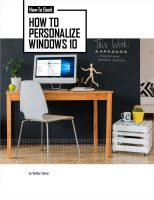
This comprehensive guide provides over 100 pages of technical instruction focused on the personalization of the Windows 10 operating system. It serves as a detailed manual for users looking to modify the default visual parameters of their workspace, moving beyond basic settings to provide deeper system configuration options. The resource details how to manage desktop backgrounds, system color schemes, and lock screen layouts to achieve a specific aesthetic or functional result.
The documentation categorizes customization into several distinct modules, allowing users to target specific interface elements. Key areas of focus include:
- General Appearance: A breakdown of system-wide visual settings and theme configurations.
- Start Menu: 10 specific methods for rearranging, resizing, and organizing the primary navigation hub.
- Taskbar: Instructions for adjusting visibility, icon behavior, and toolbars.
- Action Center: Procedures for managing notifications and quick action toggles for better accessibility.
- System Icons: Steps for replacing or modifying default Windows icons to enhance visual clarity.
By following these factual walkthroughs, users can gain granular control over how Windows 10 presents information and handles navigation. The guide is designed for those who require a consolidated reference for tailoring the desktop environment to their specific professional or personal requirements. It covers essential configurations and advanced tweaks to ensure the operating system functions according to user preference.
Top 5 Reasons To Download How To Personalize Windows 10
- Complete Aesthetic Overhaul: Learn how to move beyond basic wallpapers and transform the entire visual language of your operating system.
- Master the Start Menu: Discover ten specific, high-impact ways to reorganize the Start menu to boost your daily productivity.
- Taskbar Optimization: Turn the most-used part of your interface into a streamlined command center tailored to your workflow.
- Action Center Control: Reclaim your focus by customizing how notifications and quick actions behave in the Windows 10 environment.
- Deep-Dive Expertise: Gain access to over 100 pages of curated, professional-grade knowledge that covers everything from icons to advanced system appearance.
Introduction: Why Your Default Windows Setup is Holding You Back
If you are anything like me, you spend a significant portion of your waking life staring at a computer screen. For most of us, that screen is running Windows 10. It is the engine behind our careers, our creative outlets, and our digital social lives. Yet, despite spending eight, ten, or even twelve hours a day inside this environment, the vast majority of users never change a single thing about how it looks or behaves. They stick with the default blue wallpaper, the cluttered taskbar, and the noisy notifications that come straight out of the box.
As a tech reviewer, I see this as a massive missed opportunity. Your operating system shouldn't just be a tool; it should be an extension of your personality and a finely tuned instrument for your specific needs. This is why this 100-page customization giveaway is such a game-changer. We aren't just talking about changing a picture; we are talking about a total reconstruction of your user experience. If you have ever felt that Windows 10 feels a bit "stale" or "cluttered," this resource is the ultimate antidote. Let’s dive deep into the five core reasons why you need to grab this download immediately.
1. Complete Aesthetic Overhaul
The first and most immediate reason to download this resource is the sheer depth of visual customization it unlocks. Most people know how to right-click the desktop and change the background image. That is "Personalization 101." This guide, however, takes you into the "Master's Degree" of appearance settings. It explores the intricate relationship between window colors, transparency effects, and system-wide themes.
There is a psychological component to this that many users overlook. When your workspace looks clean, professional, and visually appealing to your specific tastes, your focus improves. By learning how to sync your accent colors with your desktop background or how to toggle the transparency of the taskbar and Start menu, you create a cohesive environment. This giveaway walks you through the nuances of Dark Mode versus Light Mode, and how to use them effectively to reduce eye strain during those late-night sessions. It is about creating a "vibe" that makes you actually want to sit down and get to work. When you move beyond the default settings, you stop using a generic Microsoft product and start using your computer.
2. Master the Start Menu: 10 Ways to Personalize
The Start menu is the heart of the Windows experience, yet for most users, it is a chaotic mess of "Live Tiles" they don't use and a long list of apps they haven't opened in years. One of the standout features of this giveaway is the section detailing ten specific ways to customize the Start menu. This isn't just about moving things around; it’s about strategic organization.
Think about how much time you waste scrolling for an application. By following the techniques in this guide, you can learn how to group your tiles into logical categories—like "Work," "Gaming," or "Creative Tools." You can learn how to resize those tiles to emphasize the apps you use most frequently and hide the ones that are just taking up space. You can even learn how to customize the list of folders that appear next to the Power button, giving you one-click access to your Documents, Pictures, or Network settings. This level of customization turns the Start menu from a cluttered drawer into a precision-engineered launchpad. If you can save even five seconds every time you open an app, those seconds add up to hours of saved time over a year. That is the power of a customized Start menu.
3. Taskbar Optimization for Power Users
If the Start menu is the heart of Windows, the Taskbar is the nervous system. It is always there, always visible, and it handles every transition between tasks. Most people leave it at the bottom of the screen with the default search bar taking up a massive amount of real estate. This guide shows you why that is a mistake and how to fix it.
Customizing the taskbar is one of the quickest ways to feel like a "power user." This resource explains how to manage the system tray (those little icons by the clock) to ensure only the most vital information is bothering you. It teaches you how to pin and unpin items with intention, how to use small taskbar buttons to maximize screen real estate, and how to configure the taskbar behavior across multiple monitors. For those who want a truly clean look, it even covers how to hide the search bar and the "Task View" button, leaving you with a minimalist strip that stays out of your way until you need it. By the time you finish this section of the guide, your taskbar will be a streamlined tool that facilitates flow rather than interrupting it.
4. Action Center Control and Focus
We live in an age of constant distraction. Every app wants your attention, and Windows 10’s Action Center is the place where all those demands converge. If you haven't customized your Action Center, you are likely being bombarded with "pings" and "toasts" that break your concentration. This is the fourth major reason to download this giveaway: learning how to master the Action Center.
The guide explores how to filter notifications so that only the truly urgent ones get through. More importantly, it shows you how to customize the "Quick Actions"—those little toggle buttons for Wi-Fi, Bluetooth, Airplane Mode, and Brightness. Many users don't realize they can rearrange these buttons or swap them out for tools they actually use, like "Screen Snip" or "Focus Assist." By tailoring these toggles, you can change your system settings in a fraction of a second without ever opening the full Settings menu. It’s about taking control of your notifications rather than letting them control you. This section alone is worth the download for anyone who values their productivity and mental clarity.
5. Deep-Dive Expertise and Icon Customization
Finally, we have to talk about the sheer volume of information here. We are looking at over 100 pages of knowledge. This isn't a brief "tips and tricks" blog post; it is a comprehensive manual. One of the most "pro-level" topics it covers is icon customization. Most users assume they are stuck with the yellow folders and standard icons provided by Microsoft. This guide dispels that myth.
Learning how to change your icons—for everything from individual folders to system shortcuts—allows for a level of personalization that truly sets your machine apart. You can use custom icon packs to give your OS a futuristic look, a retro aesthetic, or a hyper-minimalist feel. Beyond just the "look," custom icons can help you identify specific folders at a glance, further reducing the cognitive load of navigating your file system. When you combine this with the other 100+ pages of content, you realize that this giveaway is providing you with a total toolkit for digital expression. It covers the "how" and the "why," giving you the confidence to dig into the settings and make changes you didn't even know were possible.
Conclusion: Don't Settle for Generic
In the world of tech, we often talk about hardware specs—RAM, CPU speeds, and GPU benchmarks. But the experience of using a computer is defined by the software interface. You can have the fastest processor in the world, but if your interface is cluttered and your workflow is interrupted by poor settings, you aren't getting the most out of your investment.
This Windows 10 customization giveaway is the key to unlocking the full potential of your PC. It takes the mystery out of the Settings menu and provides clear, actionable steps to transform your desktop. Whether you want to boost your productivity by mastering the taskbar, or you simply want a more beautiful environment to work in, this 100-page resource is an essential addition to your digital library. Stop settling for the default. Download this guide, take an hour to experiment with the settings, and I promise you will never want to go back to the "factory settings" again. Your computer should be as unique as you are—this giveaway shows you exactly how to make that happen.
Note: Personalizing your computer is a journey, not a destination. As you grow and your needs change, your setup should change with you. Use this resource as a foundation to keep exploring what is possible within Windows 10. Happy customizing!


Reviews for How To Personalize Windows 10
Click Here to Read Reviews for How To Personalize Windows 10 >> Click Here to Submit Reviews for How To Personalize Windows 10 >>