What Does Presentation Pointer Do?
Presentation Pointer is a utility designed to enhance visibility during live software demonstrations and digital presentations. The software provides several tools aimed at maintaining audience focus by clarifying on-screen interactions that might otherwise be difficult to see on a projector or through a shared stream.
The application includes several core features for real-time interaction:
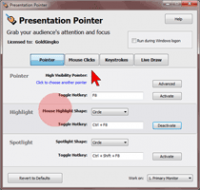
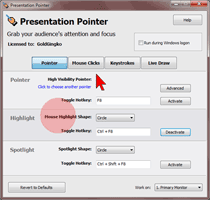
- Cursor Highlighting: Users can apply visual halos around the mouse pointer and trigger audible or visual effects for mouse clicks to signify action.
- Keystroke Visualization: The software displays keyboard inputs in an overlay at the bottom of the screen, allowing viewers to see shortcuts and commands as they are executed.
- Live Annotation: Presenters can draw directly onto the active screen to highlight specific interface elements or data points during a live session.
- Dynamic Zooming: The tool supports zooming in and out of the screen without disabling underlying desktop utilities, ensuring the demonstration remains functional while magnified.
By integrating these visual aids, Presentation Pointer serves as a bridge between the presenter's actions and the audience's perspective. It is a functional solution for technical trainers and speakers who need to illustrate complex technical walkthroughs clearly. The software focuses on reducing the gap between the user's input and the viewer's comprehension by providing high-contrast visual feedback for every mouse and keyboard movement.
Top 5 Reasons To Download Presentation Pointer
If you have ever spent your time in front of an audience, whether in a boardroom, a classroom, or over a digital webinar, you know the ultimate struggle: keeping people focused on what actually matters. We have all been there, squinting at a screen while a presenter frantically circles their mouse, hoping the audience can see a tiny gray arrow moving against a complex background. It is frustrating for the presenter and exhausting for the audience. But today, we are looking at a game-changer. This giveaway offers a tool that transforms your standard display into an interactive, high-visibility demonstration powerhouse. Here are the top five reasons why you need to download this software right now.
- Enhanced Cursor Visibility and Feedback: Say goodbye to "cursor blindness" with advanced highlighting and audible click effects that guide your audience’s eyes exactly where they need to be.
- Real-Time Keystroke Visualization: Bridge the communication gap by displaying your keyboard shortcuts and typing in a clean, customizable overlay at the bottom of your screen.
- Interactive Live Drawing Tools: Turn your entire operating system into a digital whiteboard, allowing you to draw, underline, and annotate directly over live applications.
- Dynamic Screen Zooming: Magnify the smallest details of your UI without losing functionality, ensuring that even the person in the back of the room (or on a mobile device) can see your work.
- Professionalism and Audience Retention: Elevate the production value of your demos and tutorials, making your presentations look more polished and keeping your audience engaged from start to finish.
1. High-Octane Cursor Visibility: Never Lose Your Audience Again
The first and perhaps most immediate reason to jump on this giveaway is the cursor highlighting feature. In the world of tech demos and digital presentations, the mouse cursor is your primary "pointer." However, on modern high-resolution displays—especially 4K monitors—that tiny white or black arrow often gets lost in the clutter of icons, text, and graphics. I have reviewed countless presentation tools, and the elegance of this specific cursor highlighting implementation is top-tier. It adds a colored halo or spotlight effect around your mouse that moves fluidly with your hand.
But it is not just about a pretty circle around the mouse. This tool allows for visual and audible feedback on mouse clicks. When you click on a menu item or a button, the software can generate a "ripple" effect or a flash of color, signaling to the audience that an action has been taken. This is a massive win for accessibility and clarity. For anyone watching a recording of your presentation later, these visual cues are essential because they provide context that is often lost in standard screen recordings. It eliminates the need for the presenter to constantly say, "Now I am clicking here," because the software is already showing them.
Furthermore, the audible click effects serve as a secondary reinforcement. While it might sound simple, the psychological impact of hearing a subtle "click" sound synchronized with a visual ripple creates a multi-sensory experience that anchors the viewer’s attention. If you are a teacher, a software developer showing off a new build, or a sales professional walking a client through a complex dashboard, this feature alone will save you from the dreaded question: "Wait, where did you just click?"
2. Transparency Through Keystroke Visualization
If you are a power user, you likely rely heavily on keyboard shortcuts. Commands like Ctrl+T, Alt+Tab, or complex sequences in software like Photoshop or CAD are second nature to you. However, to your audience, it looks like magic—and not the good kind. They see windows opening and closing or layers appearing without understanding the "how." This software solves that by displaying your keystrokes in a sleek overlay at the bottom of the screen. This is one of the most requested features for tech reviewers and tutorial creators, and having it integrated into a live presentation tool is a massive advantage.
Imagine you are teaching a coding class. As you type out a command or use a shortcut to refactor code, the keys you press appear in real-time for your students to see. This turns a "tell" into a "show." It reduces the cognitive load on the learner, as they no longer have to ask you to repeat which keys you pressed. The overlay is designed to be non-intrusive yet highly legible, ensuring it doesn't block critical information while still being impossible to miss.
This feature is also a lifesaver for troubleshooting and remote support. If you are demonstrating a fix to a colleague, showing the exact keystroke combinations ensures there is no room for misinterpretation. It adds a layer of transparency to your workflow that builds trust and increases the educational value of your content. In my experience, once you start using a keystroke visualizer, you realize how much "hidden" information you were previously expecting your audience to guess. This giveaway makes that transparency effortless.
3. Live On-Screen Drawing: The World is Your Whiteboard
One of the most powerful features of this tool is the ability to draw on a "live" screen. Most presentation software allows you to draw on static slides, but this tool takes it a step further by letting you annotate directly over your desktop and active applications while they are running. This turns your entire operating system into an interactive canvas. Whether you need to circle a specific line of code, draw an arrow pointing to a hidden setting, or underline a key phrase in a PDF, the live drawing tool makes it happen with zero lag.
The "live" aspect is the key differentiator here. You aren't just drawing on a frozen screenshot; you are interacting with the environment. This is incredibly useful for software walkthroughs. You can circle a button, then click that button, and then draw an arrow to the resulting window. It creates a narrative flow that is much more natural than switching back and forth between a presentation deck and a live demo. For creative professionals, this is a dream come true for giving feedback on designs or UI/UX layouts. You can literally sketch ideas directly over the interface you are discussing.
The drawing tools are intuitive and responsive, mimicking the feel of a physical highlighter or pen. By using these tools, you transform from a passive speaker into an active guide. You are physically (or digitally) marking the path for your audience to follow. This level of interactivity is proven to increase information retention because it mimics the way we learn on a traditional chalkboard or whiteboard, but with the added power of digital precision.
4. Precision Zooming Without Losing Control
We have all seen the standard Windows or Mac screen magnifier, but they are often clunky and hard to control during a live performance. This software offers a sophisticated zoom function that allows you to magnify specific areas of the screen while maintaining full use of your tools and applications. This is critical for showing off small details, such as complex data in an Excel spreadsheet, a specific icon in a dense toolbar, or a line of fine print in a legal document.
The beauty of this feature is its fluidity. You can zoom in and out with a quick command, allowing you to move from the "macro" view of your entire desktop to the "micro" view of a single pixel in an instant. More importantly, the software ensures that your mouse movements and drawing tools still work perfectly within the zoomed-in state. It doesn't just blow up the image; it scales your interaction. This means you can zoom into a specific UI element and then use the drawing tool to highlight it, providing a level of clarity that is simply impossible with standard screen sharing.
For those presenting to remote audiences, this is a game-changer. Mobile viewers or those on small laptop screens often struggle to see details in a full-screen screen share. By zooming in on the relevant sections, you are essentially "directing" the viewer’s camera, ensuring they are seeing exactly what you want them to see, at a scale that is comfortable for them. It shows a level of consideration for your audience that truly separates amateur presenters from the pros.
5. Professionalism: The Competitive Edge
The final reason to download this giveaway is perhaps the most important: it makes you look like a pro. In a world where everyone is doing remote demos and digital presentations, the "default" look is getting old. People are tired of blurry cursors and "Can you see my screen?" interruptions. By using a tool that integrates highlighting, keystrokes, drawing, and zooming, you are signaling to your audience that you value their time and attention. You are providing a high-quality experience that is easier to follow and more enjoyable to watch.
There is a psychological component to a "polished" presentation. When a presenter uses tools that make the information clear and easy to digest, the audience perceives that presenter as more competent and authoritative. This tool gives you a "command center" feel over your screen. It allows you to navigate complex software with a level of grace that keeps the audience focused on your message rather than the mechanics of the demo. You aren't just showing a screen; you are delivering a produced show.
Furthermore, this software is a "set it and forget it" kind of utility. Once you have customized your cursor color, your keystroke overlay position, and your drawing preferences, it sits quietly in the background, ready to be summoned with a quick hotkey. It doesn't hog system resources, and it doesn't get in the way of your actual work. It is an essential companion for any modern professional who uses a computer to communicate ideas. Given that this is currently a giveaway, there is absolutely no reason not to add this to your digital toolkit. You are getting a premium suite of presentation features that will pay dividends in every meeting, webinar, and tutorial you host from here on out.
Final Verdict: If you do any form of screen-based communication, this tool is not just a luxury—it is a necessity. The combination of visibility, transparency, and interactivity provided by these five features will fundamentally change how you interact with your audience. Don't miss out on the chance to download this giveaway and take your presentations to the next level. Your audience will thank you for it.

Reviews for Presentation Pointer
Click Here to Read Reviews for Presentation Pointer >> Click Here to Submit Reviews for Presentation Pointer >>