What Does Hide Cloud Drive Do?
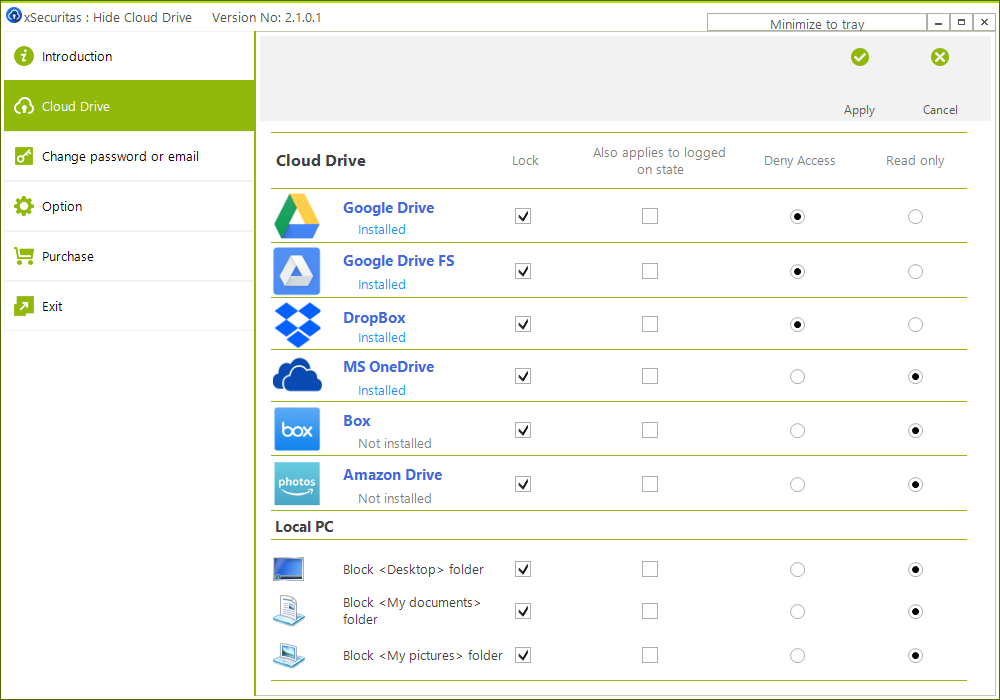
Hide Cloud Drive is a security utility designed to prevent unauthorized access to local cloud synchronization folders and sensitive system directories when a user is away from their workstation. The software allows users to implement Deny Access or Read Only policies for specific cloud drives and local storage locations.
Under the Deny Access setting, the designated sync folder becomes inaccessible, and associated system tray icons and shortcuts are removed from the interface. This functionality targets the directories displayed in Windows Explorer rather than cloud data accessed via web browsers. In addition to cloud storage, users can apply these same restrictive policies to the Desktop, Documents, and Pictures folders.
The application supports a wide range of major service providers, including:
- Google Drive (Backup and Sync/File Stream)
- Dropbox
- Microsoft OneDrive
- Box
- Amazon Drive
Technically, the software is designed to manage dynamic changes; if a user moves a cloud sync folder while the application is active, it maintains control over both the original and new locations. Following a system reboot, the utility automatically recalibrates to focus only on the updated folder path. This provides a persistent layer of privacy for users sharing hardware or leaving devices unattended in shared environments.
Top 5 Reasons To Download Hide Cloud Drive
- Total Invisibility Through Tray Icon and Folder Stealth
- Granular Security Policies: "Deny Access" vs. "Read Only"
- Universal Protection for System Folders (Desktop, Documents, and Pictures)
- Seamless Dynamic Management of Cloud Path Changes
- Comprehensive Support for Every Major Cloud Provider
In the modern era of computing, our digital lives are inextricably linked to the cloud. Whether it is your work-from-home spreadsheets, your private family photos, or your sensitive financial documents, the "Cloud Sync" folder has become the heartbeat of our personal and professional productivity. However, there is a glaring security vulnerability that most tech users completely overlook: the physical access point. We spend thousands of dollars on firewalls and antivirus software to keep hackers out of our systems, but what happens when you step away from your desk for a coffee break? What happens when you lend your laptop to a friend or a colleague? Most cloud services—like OneDrive, Dropbox, and Google Drive—are designed for convenience, meaning they stay logged in, visible, and fully accessible to anyone sitting in your chair. This is where Hide Cloud Drive steps in to revolutionize your local privacy. As a reviewer who has seen countless security utilities, I can tell you that this is the missing piece of the puzzle. Here is why you absolutely need to download this giveaway today.
1. Total Invisibility Through Tray Icon and Folder Stealth
The first and most compelling reason to grab this software is its ability to perform a total vanishing act. Most privacy tools simply password-protect a folder, which ironically draws more attention to it. If a snooping individual sees a folder labeled "Private" or a third-party locking app, their curiosity is immediately piqued. Hide Cloud Drive takes a much more sophisticated approach: obfuscation through total invisibility.
When you activate the protection, the software doesn't just lock the folder; it wipes it from the face of the Windows Explorer interface. More importantly, it hides the Tray Icon. Think about how your cloud drives operate: there is always a little blue cloud, a green box, or a colorful triangle sitting in your taskbar, constantly syncing. That icon is a beacon that tells anyone looking at your screen exactly which services you use. By removing both the folder and the icon, the software ensures that a casual user wouldn't even know you have a cloud drive installed on the machine. This "out of sight, out of mind" philosophy is the highest form of security because it prevents the threat from ever realizing there is something to steal or view in the first place.
For anyone working in an open-office environment or living in a shared household, this feature is a lifesaver. You can walk away from your PC with the peace of mind that your synced data has effectively ceased to exist for anyone other than you. It is the digital equivalent of a hidden wall safe that is masked by a painting; if they can't see the safe, they can't even begin to try and crack it.
2. Granular Security Policies: "Deny Access" vs. "Read Only"
One of the biggest mistakes software developers make is offering an "all or nothing" solution. Fortunately, Hide Cloud Drive understands that security needs are contextual. This giveaway provides you with two distinct, powerful policies: Deny Access and Read Only. Having the ability to toggle between these two based on your specific situation is a game-changer for data integrity.
The Deny Access policy is your "nuclear option." When this is engaged, the cloud sync folder becomes completely inaccessible. The system acts as if the path does not exist. The Tray Icon vanishes, and any shortcuts you’ve created become dead links. This is what you use when you are leaving your computer in a high-risk environment or when you are done for the day. It provides a hard barrier that prevents any interaction with your files.
On the flip side, the Read Only policy is a stroke of genius for collaborative or semi-public environments. We have all been in a situation where we need to show someone a file but don't want them accidentally (or intentionally) deleting or modifying it. By setting your cloud drive to Read Only, you allow the data to be viewed, but you prevent any changes from being saved back to the cloud. This protects your version history and ensures that your master files remain untainted. It is the perfect balance between accessibility and security, giving you the power to share your screen or your device without risking the "human error" that leads to data loss.
3. Universal Protection for System Folders (Desktop, Documents, and Pictures)
While the name of the software focuses on "Cloud Drive," the developers have included a feature that makes this an essential system utility even for those who aren't cloud-power users. The software extends its "Deny Access" and "Read Only" capabilities to the most vulnerable directories on any Windows machine: the Desktop, Documents, and Pictures folders.
Let’s be honest: despite our best efforts to stay organized, most of our "active" work lives on our Desktop. Our most sensitive personal information is tucked away in the Documents folder, and our private memories are in Pictures. These are the first places a snooper looks. By using Hide Cloud Drive, you can lock down these three core system folders with the same level of encryption-grade logic used for your cloud data.
This effectively allows you to "ghost" your entire user profile. Imagine being able to hand your laptop to a guest so they can browse the web, but with a single click, your Desktop is cleared of all icons, your Documents folder is locked tight, and your private photo gallery is invisible. This level of control over the Windows shell environment is usually reserved for complex IT administrative tools, but this software brings that power to the average user in a sleek, easy-to-use package. It turns your PC into a multi-layered fortress where your most personal files are hidden behind an invisible curtain.
4. Seamless Dynamic Management of Cloud Path Changes
One of the most frustrating aspects of using system-level security tools is how easily they break. If you move a folder or change a setting in your cloud app, the security tool often loses track of the target and fails to protect you. This software solves that problem with a remarkably intelligent background logic that monitors your cloud sync paths in real-time.
If you decide to move your Google Drive or OneDrive folder to a different partition—say, from your C: drive to a larger D: drive—Hide Cloud Drive doesn't skip a beat. The application is designed to control all sync folders before and after the change during your active session. It maintains a persistent watch over the metadata of these services. Once you reboot, the software automatically updates its internal mapping to only control the new, updated sync folder.
This "set it and forget it" reliability is exactly what you want in a security product. You shouldn't have to be a tech expert to maintain your privacy. The fact that the software handles the backend complexity of Windows file paths and registry changes means you can focus on your work while the app handles the heavy lifting. It ensures that there is never a "security gap" caused by a simple configuration change. Whether you are upgrading your storage or reorganizing your file structure, your protection remains constant and unwavering.
5. Comprehensive Support for Every Major Cloud Provider
A security tool is only as good as its compatibility. In today's ecosystem, many of us don't just use one cloud service; we use three or four. You might use OneDrive for work, Google Drive for personal projects, and Dropbox for sharing files with friends. A tool that only protected one of these would be half-baked. Hide Cloud Drive offers universal support for the "Big Five" and more.
The software is fully compatible with:
- Google Backup and Sync & Google Drive File Stream: Essential for both personal users and G-Suite enterprise professionals.
- Microsoft OneDrive: The default for millions of Windows users, making its protection a top priority.
- Dropbox: The gold standard for file sharing and syncing.
- Box: A favorite for secure enterprise-level document management.
- Amazon Drive: A rising giant in the consumer cloud space.
By covering this wide array of services, the app ensures that you have a unified security interface. You don't need a separate locker for each service. You can manage the visibility and access rights of your entire cloud footprint from a single dashboard. Furthermore, the software specifically targets the Explorer-integrated versions of these services. It recognizes that while web-browser access is protected by your account password, the local sync folder is the "open door" on your hard drive. By slamming this door shut and locking it, Hide Cloud Drive provides the missing layer of local security that the cloud providers themselves have neglected to build in.
The Final Verdict: Why You Should Download Right Now
As a tech reviewer, I see hundreds of apps that claim to "protect" your data, but most of them are just bloated wrappers for basic Windows features. Hide Cloud Drive is different. It addresses a very specific, very real threat: the physical vulnerability of the sync folder. It understands that visibility is a liability. By hiding tray icons, masking folder paths, and allowing for "Read Only" protections, it gives you a level of control over your PC that Windows simply does not provide out of the box.
The giveaway version is a massive value-add for anyone who takes their privacy seriously. You are getting a sophisticated system utility that handles everything from the newest Google Drive File Stream to the classic Dropbox setup, all while protecting your Desktop and Documents folders as a bonus. It’s lightweight, it’s intelligent, and it solves the problem of "snooping" once and for all.
Don’t wait until someone accidentally deletes an important work file or stumbles upon a private document they weren't meant to see. Take control of your local cloud presence. Hide your drive, secure your data, and enjoy the peace of mind that comes with digital invisibility. This is a must-download for any Windows user who values their privacy in an increasingly connected world.
In conclusion, the combination of stealth, granular policy control, and broad service support makes Hide Cloud Drive an elite-tier utility. It fills a niche that is often ignored by major antivirus suites and OS developers alike. Whether you are a student, a professional, or a parent, the ability to instantly "ghost" your most important data is a superpower you didn't know you needed—until now. Download it, set your policies, and rest easy knowing your cloud is for your eyes only.

Reviews for Hide Cloud Drive
Click Here to Read Reviews for Hide Cloud Drive >> Click Here to Submit Reviews for Hide Cloud Drive >>