What Does Upscal – Image Upscaler Do?
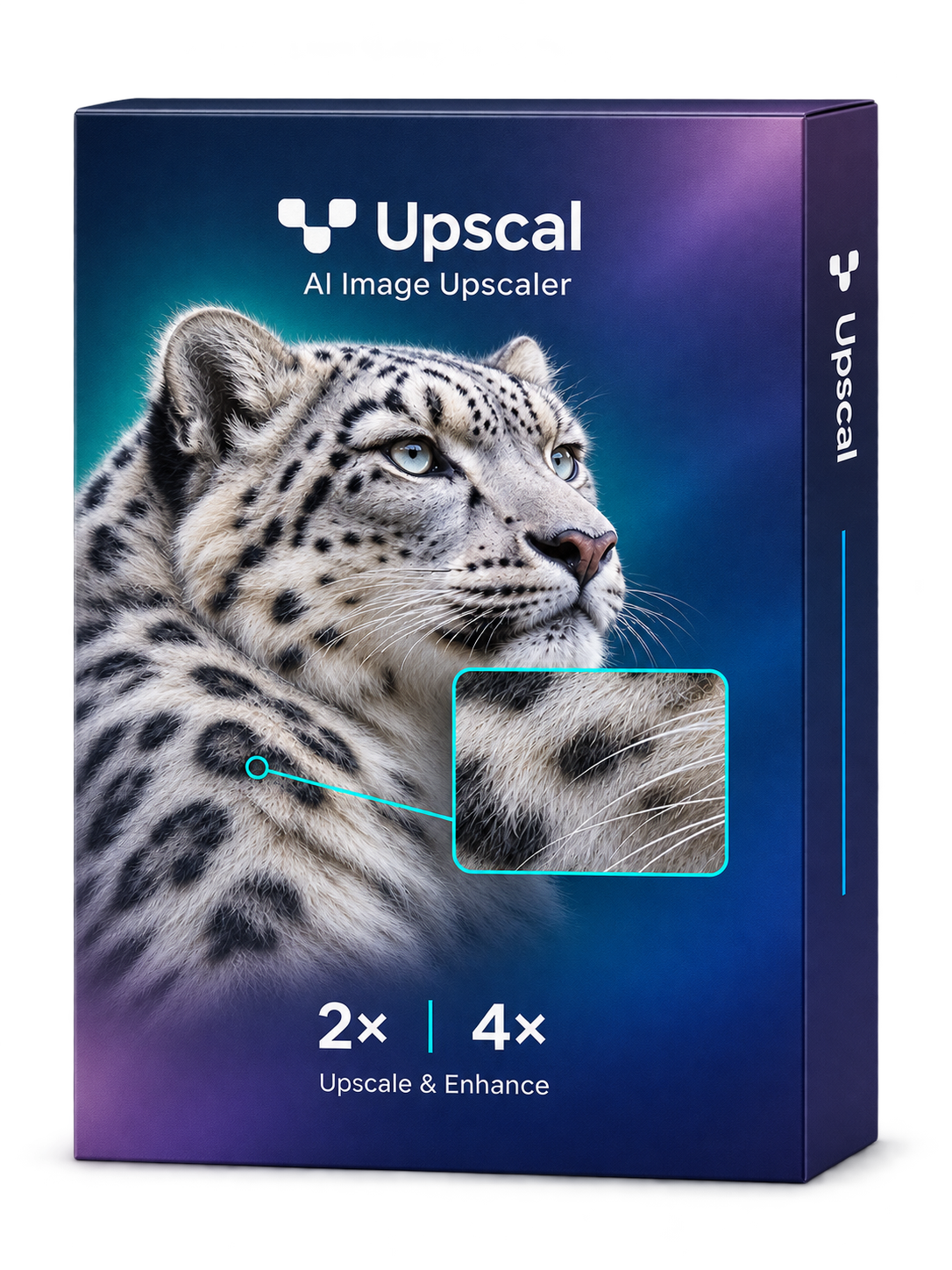
Upscal is an offline image and video upscaler designed for Windows environments. Unlike cloud-based alternatives, this software executes AI models locally on your hardware, eliminating the need for mandatory uploads or recurring subscription fees. It enables users to increase resolution, improve clarity, and sharpen details while maintaining data privacy.
The application supports several practical workflows for managing visual assets:
- Batch Image Processing: Users can manage multiple files simultaneously through a drag-and-drop queue, tracking progress for each file while selecting custom output directories.
- AI Model Selection: The software features multiple enhancement models and scale ratio options, allowing for 4x model processing with optional 2x output.
- Hardware Optimization: Upscal utilizes GPU acceleration to decrease processing times. It allows users to choose specific processing devices or use a CPU fallback for systems without compatible graphics hardware.
Designed for photographers, designers, and e-commerce professionals, the tool is used to prepare high-resolution assets for printing, web design, and social media. By focusing on an offline-first architecture, it ensures that personal and professional image collections remain strictly on the user's device throughout the enhancement process. The interface is built for efficiency, providing a simple way to transform low-resolution scans, artwork, and product photos into sharper digital files.
Top 5 Reasons To Download Upscal – Image Upscaler
If you have ever tried to enlarge a small, pixelated photo or rescue a compressed image downloaded from the web, you already know how frustrating modern image tools can be. You search for an AI upscaler, click the first promising site, upload your photo, wait in a sluggish server queue, and then get slapped with a paywall demanding monthly credits just to download your file without a massive watermark. Worse still, you have just handed your personal photos, client assets, or unreleased product shots over to an unknown external server.
That is exactly why today’s giveaway caught my eye—and why I genuinely think it deserves a permanent spot on your Windows PC. Upscal is an offline-first image upscaler and photo enhancer built specifically for Windows users who are tired of cloud lock-ins, recurring subscriptions, and privacy trade-offs. With built-in AI models running directly on your own hardware, Upscal lets you enlarge low-resolution images, sharpen fine details, and process entire folders in batches without sending a single pixel to the cloud.
Whether you are a photographer polishing client shots, an online seller cleaning up product galleries, or someone trying to make old family snapshots suitable for printing, Upscal delivers serious practical value with zero hidden costs. Before we dive into the full review, here is a quick rundown of the top five reasons you should grab this giveaway right now.
The Top 5 Reasons You Need Upscal
- True Offline-First Privacy With Zero Cloud Uploads: Every image stays strictly on your Windows device, giving you complete control over sensitive files with no external servers and no subscription fees.
- Effortless Batch Image Processing: A smart drag-and-drop queue lets you upscale and enhance dozens of images at once while tracking progress for every single file.
- Multiple Built-In AI Models and Flexible Scaling: Choose from multiple enhancement models and scale options—including 4x model processing with optional 2x output—to match your exact project needs.
- Hardware-Accelerated GPU Performance: Tap into compatible graphics hardware for faster local processing, with customizable device selection tailored to your PC.
- Built for Real-World Creative and Everyday Workflows: From e-commerce product listings and print-ready artwork to social media graphics and old photo restoration, Upscal fits seamlessly into almost any workflow.
1. True Offline-First Privacy With Zero Cloud Uploads or Subscriptions
Let us start with the single biggest differentiator in today’s AI software landscape: privacy and ownership. Almost every trendy AI photo enhancer on the market today operates as a cloud service. That means every time you want to sharpen a portrait, enhance a scanned document, or clean up a graphic, you have to upload your original file over the internet to someone else’s computer. For casual memes, maybe you do not care. For family photos, confidential design mockups, client portraits, or unpublished e-commerce products, uploading files to third-party servers is a massive risk.
Upscal flips that entire model on its head. Because it is built from the ground up as an offline-first Windows application, all of its built-in AI models execute locally on your machine. There are no mandatory cloud uploads, no external processing queues, and no wondering where your images are stored or who might have access to them after you close your browser tab. Your source files never leave your hard drive, and your enhanced results go straight into the output folder you choose.
Just as refreshing is what you do not have to pay. Cloud upscalers love trapping users in complicated credit tiers, monthly subscriptions, and hidden upgrade fees whenever you need a higher resolution or want to process more than three photos a day. Upscal cuts out the subscription nonsense completely. Once you download this giveaway, you have a dedicated desktop tool ready to work whenever you need it—even if your internet connection drops completely. For creative teams, freelancers, and privacy-conscious users alike, having local control over both your workflow and your files is a huge win.
2. Effortless Batch Image Processing That Eliminates Repetitive Busywork
Upscaling one image at a time is fine when you only need to fix a single desktop wallpaper. However, the moment you are dealing with twenty product photos for an online store, a folder full of scanned artwork, or a set of presentation assets, single-file tools turn into an absolute chore. Clicking upload, wait, tweak, download, repeat fifty times in a row is the fastest way to kill your productivity.
Upscal solves this headache with a clean, practical batch processing workflow designed around real desktop efficiency. Instead of babying one file at a time, you can simply drag and drop multiple images straight into the processing queue and let the software handle the heavy lifting. From a reviewer’s standpoint, this is where a utility software proves whether it was built for real work or just as a quick novelty—and Upscal clearly understands real work.
Here is what makes its batch workflow so convenient in day-to-day use:
- Drag-and-Drop Queue: Add multiple images quickly without digging through clunky file menus every time.
- Queue Management: Organize and oversee your pending files cleanly before kicking off a run.
- Per-File Progress Tracking: Keep an eye on status monitoring during processing so you always know how far along each image is.
- Custom Output Folders: Send your newly enhanced files directly to a dedicated destination directory so your original images stay neatly separated and untouched.
- Practical Defaults: Get consistent, reliable results across large folders without constantly fiddling with obscure settings.
If you regularly manage large image folders, photo collections, or design assets, this batch capability alone saves hours of tedious manual clicking. You load up the queue, hit go, and move on to other tasks while Upscal works through the list locally.
3. Multiple Built-In AI Models and Flexible Scaling Options
Not every low-resolution image fails for the same reason. A compressed photograph from a smartphone looks completely different from a low-res digital illustration, a scanned vintage print, or a crisp graphic design asset. Basic image editors rely on traditional interpolation methods that simply stretch pixels out, leaving you with blurry edges, jagged lines, and muddy textures. To actually recover clarity and detail, you need intelligent enhancement—and you need options that fit the type of image you are working with.
Upscal gives you impressive flexibility by packing multiple built-in AI image enhancement models right into the app. Rather than forcing every picture through a one-size-fits-all filter, you can choose between different models and tune how they execute to get cleaner, sharper outcomes. Want to take a tiny source file and blow it up dramatically? Upscal supports 4x model processing, allowing you to quadruple dimensions while preserving crisp edges and believable detail.
Even better, Upscal includes scale ratio selection and supports 4x model processing with an optional 2x output. That detail might sound small on paper, but in practice it is super useful. Sometimes a full 4x enlargement produces a file much larger than what you actually need for a website banner or social media post, whereas processing through the 4x model and outputting at 2x gives you clean detail downsampling without bloated dimensions. Combined with direct model execution and live status monitoring, you get far more control over your output quality than typical consumer one-click apps offer.
4. Hardware-Accelerated GPU Performance That Puts Your PC to Work
One concern many people have with local AI software is performance. Running neural enhancement models locally requires real computing muscle, and nobody wants their PC grinding to a halt for ten minutes just to upscale a single snapshot. Fortunately, Upscal is engineered to take advantage of your Windows system’s graphics hardware through GPU acceleration.
If your computer has a supported graphics card and up-to-date drivers, Upscal lets you select available processing devices and tune the workflow to match your hardware. Offloading heavy AI image math from your main processor to a capable GPU can make a night-and-day difference in processing speed—especially when you are working through batch queues or running demanding 4x enhancements.
As a tech reviewer, I also appreciate transparency about system performance, and Upscal sets realistic expectations. Local processing speed naturally depends on several factors: the starting resolution of your image, the specific enhancement model you select, your chosen scale ratio, your CPU or GPU hardware, and driver support. If your system does not have a supported GPU available, Upscal gracefully falls back to CPU processing. While CPU fallback is slower—especially on larger files or higher scale ratios—having that compatibility means you are not locked out of using the app on standard laptops or office desktops. You get to leverage top-tier GPU speed if you have the hardware, while still keeping universal Windows usability if you do not.
5. Built for Real-World Creative, E-Commerce, and Everyday Workflows
The best software giveaways are not niche gimmicks you open once and forget; they are practical tools you keep coming back to across different projects. What makes Upscal stand out is how effortlessly it adapts to so many different types of Windows users. Because it focuses on clean workflows—enhancing clarity, recovering detail, and preparing high-resolution assets without internet dependency—it delivers immediate value whether you use it professionally or casually.
Consider just how many everyday bottlenecks Upscal resolves across different fields:
- Photographers: Improve photo clarity and crispness on tight crops, older digital captures, or images destined for large prints and client presentations.
- Designers: Upscale small client logos, textures, artwork, and creative assets when original high-res source files are nowhere to be found.
- E-Commerce Sellers: Transform tiny supplier thumbnails and soft product images into sharp, trustworthy storefront visuals that look great on zoomable product pages.
- Content and Social Media Creators: Prep sharper wallpapers, thumbnails, and platform-ready visuals without losing edge definition to compression.
- Creative Teams: Build dependable local image processing pipelines without worrying about cloud compliance, bandwidth caps, or team seat licenses.
- Everyday Windows Users: Breathe new life into old family scans, low-resolution downloads, and cherished memories so they actually look good on modern high-DPI monitors or framed prints.
That breadth of utility is rare. You do not need to be a Photoshop wizard to understand Upscal’s drag-and-drop interface, yet it offers enough model control, batch management, and hardware tuning to satisfy demanding creators.
The Reviewer’s Verdict: Why You Should Grab This Giveaway Today
Every so often, a Windows utility comes along that solves an everyday frustration cleanly, respectfully, and without trying to nickel-and-dime you at every turn. Upscal is exactly that kind of software. In an era where almost every AI tool demands a cloud upload, a user account, and an ongoing subscription just to make a blurry image sharper, having a fast, offline-first alternative running right on your own PC feels genuinely empowering.
You get private local processing with zero external uploads, a time-saving batch queue for handling whole folders at once, multiple built-in AI models with flexible 2x and 4x scaling, and GPU acceleration that puts your graphics hardware to work. Whether you are prepping product listings, polishing creative assets, or rescuing old low-resolution photos, Upscal is a smart, practical addition to your digital toolkit. Giveaways like this do not stick around forever—download Upscal while it is free, put it through its paces on a few tough images, and enjoy having crisp, high-resolution results on demand whenever you need them.

Reviews for Upscal – Image Upscaler
Click Here to Read Reviews for Upscal – Image Upscaler >> Click Here to Submit Reviews for Upscal – Image Upscaler >>